Known Issues
Cannot initialise company
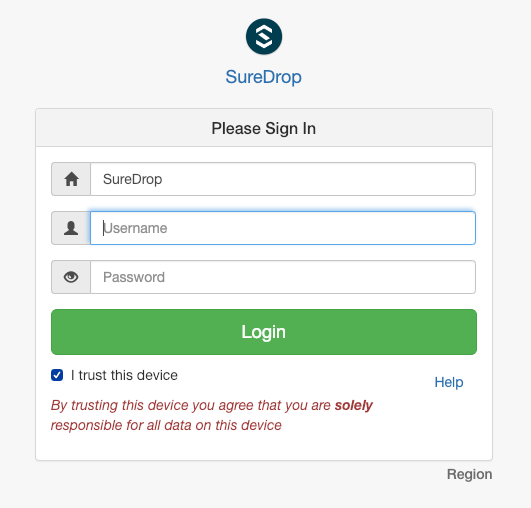
I’ve installed SureDrop and when it is complete I’m trying to login to SureDrop via the browser but I see the login page and I cannot initialise company or create administrator password. I just see a login page that looks like
Possible reasons
This generally happens because the browser cannot get a valid response from the Rest endpoint, or there is a delay in getting the response. Such failures could occur due to
Docker service not running - even if set to automatic sometimes the service fails to start after an OS restart. Please check and start the service from Windows
services.msc.The CPU utilisation of the VM and / or the docker container(s) is very high (possibly 100%) - we advise you to wait until the VM is stable in terms of memory and CPU utilisation.
The docker container(s) couldn’t start successfully
Other network related connectivity issues
Diagnostics
Refer to these instructions.
Docker containers failing to start
We’ve noticed that occasionally after a restart of Windows 2016 virtual
machines, windows docker containers fail to start up with error messages
like: HNS failed with error.... Some issues like
these have been
formally reported and supposedly
resolved via some
Windows updates; whereas
others
are still at large. Windows 2016 and Docker have had a history of
networking problems which have been resolved in Windows 2019. Thankfully
it is not a very frequent occurrence. Users might notice SureDrop not
working after a restart and run diagnostics to see this error in the
diagnostics.txt file.
Solution
Open an
admin power-shelland browse to the SureDrop installation directory.Run the commands
netsh winsock reset

netsh int ip reset
Run the command
wget "https://suredrop-downloads.s3-ap-southeast-2.amazonaws.com/WindowsContainerNetworking-LoggingAndCleanupAide.ps1" -outfile "WindowsContainerNetworking-LoggingAndCleanupAide.ps1"; ./WindowsContainerNetworking-LoggingAndCleanupAide.ps1 -Cleanup -ForceDeleteAllSwitches
- Open Control Panel > Device Manager > Network adapters
and Uninstall all network adapters.
Restart the VM.
Reset the static IP address on the network adapter.
In a powershell run the following commands-
stop-service docker

Get-ContainerNetwork | Remove-ContainerNetwork
   (Select (Y))

Get-NetNat | Remove-NetNat
Restart the VM.
where the
[HOST-IP]is the static IP address of your VM.Run the command
./suredrop startto reinitialise the docker stack using the previously saved answers and reusing the data persisted using docker volumes.
Storage mesh appears to be unavailable
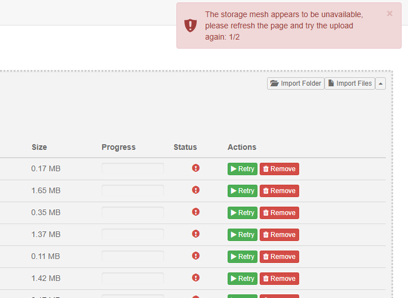
For our on-premises solution, if while uploading files you see the following storage mesh related error -
Probable reasons
Please check that both the primary and secondary storage servers are correctly configured and accessible. If in doubt, refer to the
answers.batfile present in the SureDrop installation directory.For example, the
answers.batfile may have lines likeset storage_primary_base=\\your-server\storage01 set storage_primary_username=suredrop set storage_primary_password=$Password2 set storage_primary_type=storage-server
in which case please verify that
\\your-server\storage01is accessible usingsuredropand$Password2.Note
An easy way to verify is to use the
net usecommand with the user credentials.If you create these SMB shares on a different machine (within a domain) then please ensure that the user account has full access to them. To give the appropriate access rights and to add them to the ACL list please right click on the folder and choose Properties. Then on Sharing tab click Advanced Sharing -> Permissions and add the user account with Full Control permissions and click OK. Then on the Security tab click Advance button and add the user with Full Control permissions on the folder , sub folders and files and click OK and finally click Apply and Close on the Properties window. Remember to give these permissions for both the primary and backup storage folders.
Office 365 not working
Refer to these Known Issues
STA integration not working
Refer to these Known issues
External Database
These Initiating a Remote SureDrop Database are relatively straight forward but they miss an important caveat, which is to do with SQL server installation.
Warning
SureDrop supports Default instances of SQL Server only, named instances
will be supported soon. During installing SQL Server ensure that you
choose Default instance in the Instance Configuration
step.
