Office 365
Contents
Introduction
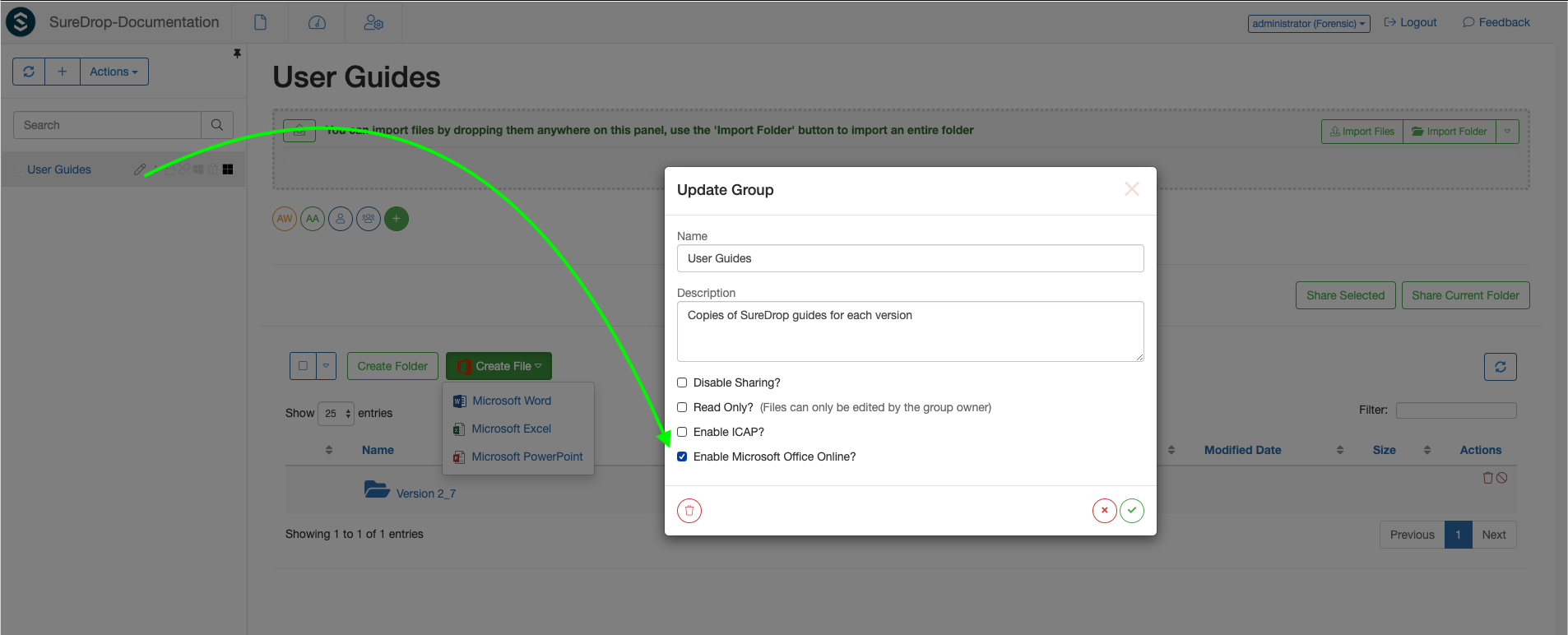
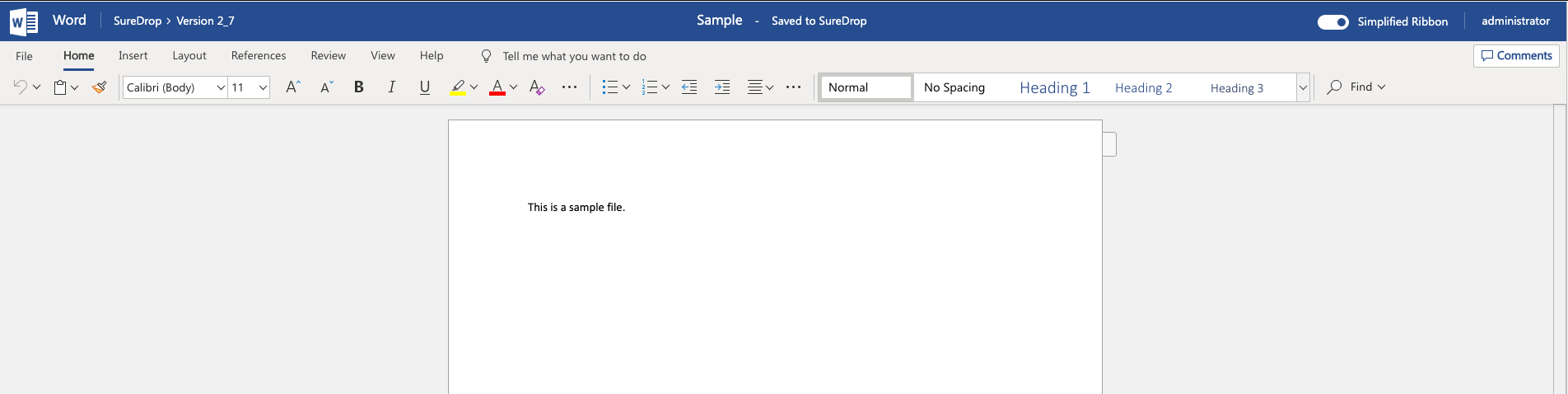
We have partnered with Microsoft to enable SureDrop to be integrated with the user’s Office 365 account. Users can create and edit Word, Excel and Powerpoint files in O365 from SureDrop. Users can also collaborate in real time using either of these file types. Office for the web supports multiple users editing a document at the same time. Co-authoring in Office for the web includes real-time content updates between all users editing the document, as well as present information and real-time cursor tracking for each user.
Business User
When Office for the web is loaded for SureDrop users, it will check that the user is signed in with an Office 365 business account, for example a Microsoft 365 Business Basic License. If the user is not signed in, they’ll be prompted to sign in

Once signed in, Office for the web will verify that the user has a valid Office 365 subscription. After this is verified, Office for the web will automatically redirect the user back to SureDrop and the user can edit documents. If the user has a valid Office 365 account but their subscription does not include Office for the web, the user will see a message that their subscription is insufficient.

Important
Please note that SureDrop users will need a valid Office 365 license to use this integration. SureDrop license does not include Office 365 licenses by default.
Single Sign On
Office 365 uses Azure Active Directory (Azure AD) to manage user identities behind the scenes. Your Office 365 subscription includes a free subscription to Azure AD so that you can integrate Office 365 with Azure AD if you want to sync passwords or set up single sign-on with your on-premises environment. You can also buy advanced features to better manage your accounts.
If as a SureDrop administrator you have setup Azure AD as your identity provider then you can associate your Office 365 license in your Azure AD portal.

Deployment
This feature has been enabled for SureDrop’s SaaS deployment instances at the moment. Enabling Office 365 integration for on-prem installations will require at least 2-3 weeks because Microsoft needs to whitelist the URLs from which users will connect to Office 365 servers.
Warning
Microsoft does not whitelist xip certificates, so on-prem installations will need to configure PKI in SureDrop with a publicly accessible valid X509 certificate. Once this is done share your SureDrop URL with your SureDrop administrator and they can initiate the whitelisting process with Microsoft.
Known Issues
Business user flow
Office Online does not load properly after user sign-in when third-party cookies are disabled. As part of the business user flow, users will be asked to sign in using their Office 365 credentials. After sign-in, they will be re-directed to SureDrop. However, if third-party cookies are disabled, the Office Online application will fail to load because the authentication cookie needed to verify the user has signed in successfully with O365 is not sent along with the Office Online iframe request.
Users must either allow third-party cookies or add *.officeapps.live.com to their browsers cookie allow list.
Note
In some browsers like Safari, third-party cookies are disabled by default.
In addition, browsers like Internet Explorer have a concept of ‘zones’ which can change how cookies are handled (among other things). Ensure all the sites in question are in the internet zone.
PowerPoint Online
Download a Copy triggers browser pop-up blocker
In PowerPoint Online only, the Download a Copy action can trigger the browser’s pop-up blocker. Microsoft is working on a fix for this issue.
Special characters in file name
Office Online will fail to load files with characters in the name that are invalid in Windows.
If a user’s file name contains the following characters, the file will not open properly in Office Online:
\ / : * ? " < > |
While Microsoft is evaluating fixes for this problem, SureDrop should strip these characters from file names in order to open them in Office Online.