SureDrop for Outlook
We have created an add-in that integrates with Microsoft Outlook in Version 2.11.0-certified. By connecting the SureDrop add-in to your Outlook account, you can:
Replace email attachments with a shared link to any file, big or small
Save email attachments that you receive directly to your SureDrop account
Enabling the integration adds a SureDrop icon  to the Outlook compose window.
When you click this icon a pop-up window appears, allowing you to select from the contents
of your SureDrop. A shared link to any selected file or folder will appear in the body of the email.
to the Outlook compose window.
When you click this icon a pop-up window appears, allowing you to select from the contents
of your SureDrop. A shared link to any selected file or folder will appear in the body of the email.
While this link looks like an attachment, it’s in fact a shared link. This means no slow-down in sending emails, and no space limitations in your inbox.
System requirements
The SureDrop add-in for Outlook is available for email accounts hosted on Microsoft Exchange 2013 or later. This is available on the following:
Office 365
Exchange Online
On-premise installations
Therefore the add-in works with the following:
Outlook on web
outlook.com
On Windows 10 and up, the SureDrop add-in is available on versions 2013 and 2016 of the Outlook desktop application
On Mac, the SureDrop add-in is available on version 2016 of the Outlook desktop application
Warning
Outlook on mobile, and older versions of Outlook on your desktop, are not supported.
POP/IMAP email accounts like Gmail are not supported.
How to install the SureDrop add-in for Outlook
You will need to install the SureDrop for Outlook add-in through Microsoft’s AppSource before you can use it.
Navigate to Microsoft’s AppSource listing for the SureDrop for Outlook add-in.
Click GET IT NOW
Enter your Microsoft account credentials.
Click Continue
Click Add
Make sure the correct email account is selected. Then, click Continue
You’ll be brought to your Outlook account. Click Install
Click OK
You’ll now see SureDrop
Configure and use the SureDrop add-in for Outlook
Once you or your admin install the add-in, you’ll see the SureDrop add-in available for use with your email account
on supported email clients. To get started, simply click in the Outlook ribbon or email header to
open the add-in, then sign into your SureDrop account.

As shown in the figure above, login to the add-in is a two-step process. First you need to login to SureDrop and click on the Connect Outlook button on the navigation bar.
Then copy the activation token from SureDrop and paste it into the add-in’s login form.
Tip
If you’re unable to install the add-in, your IT admin may have add-ins restricted. Please contact your admin for help.
Windows users - The first time you use the add-in, some web browsers may display a security alert asking you to allow the Internet Low-Mic Utility Tool to open content. Click Allow to use the add-in.
Attach a file from your SureDrop account to an email
When composing an email in Outlook, click the SureDrop icon to access your SureDrop account.
Select the files or folders you’d like to include in your email, or
Click on the user name and choose Upload files from the dropdown.
Click Attach; a shareable link is generated for each file or folder you select.

Save an attachment to your SureDrop account
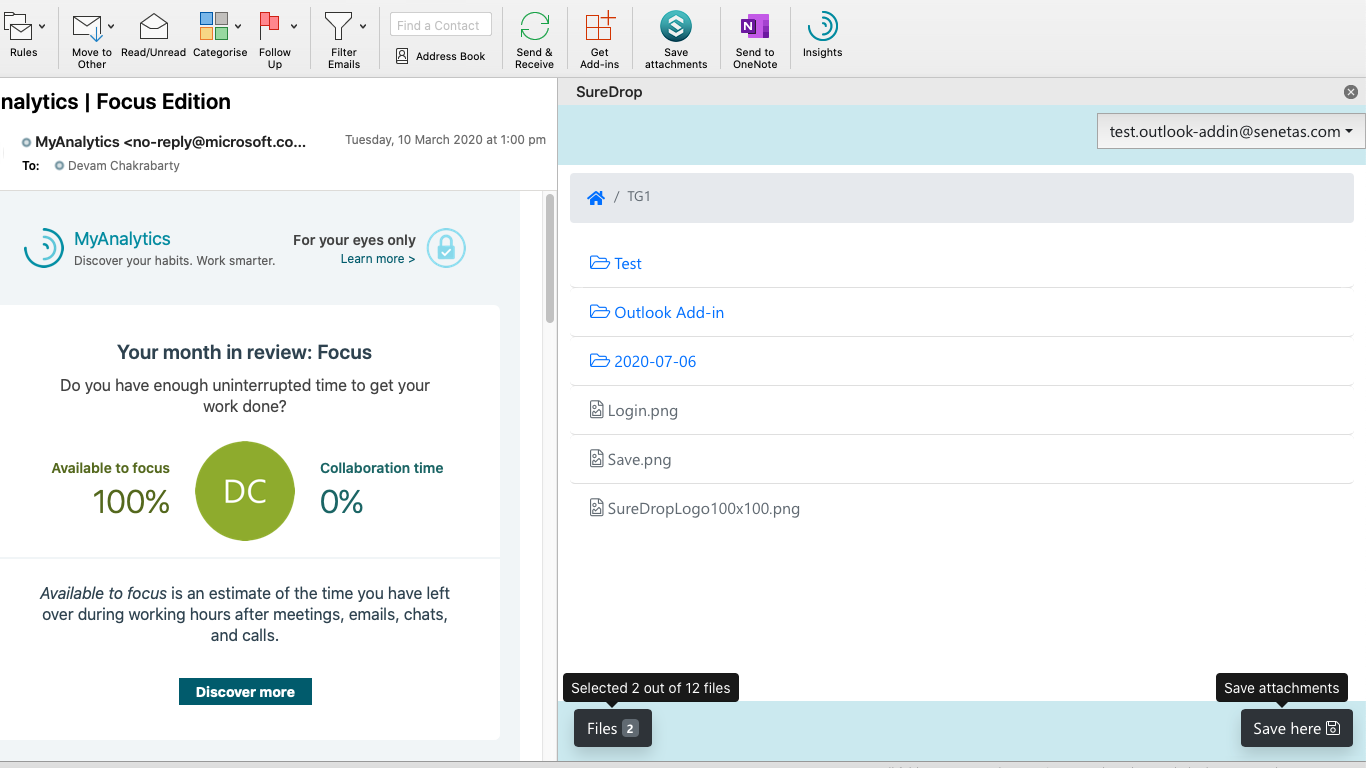
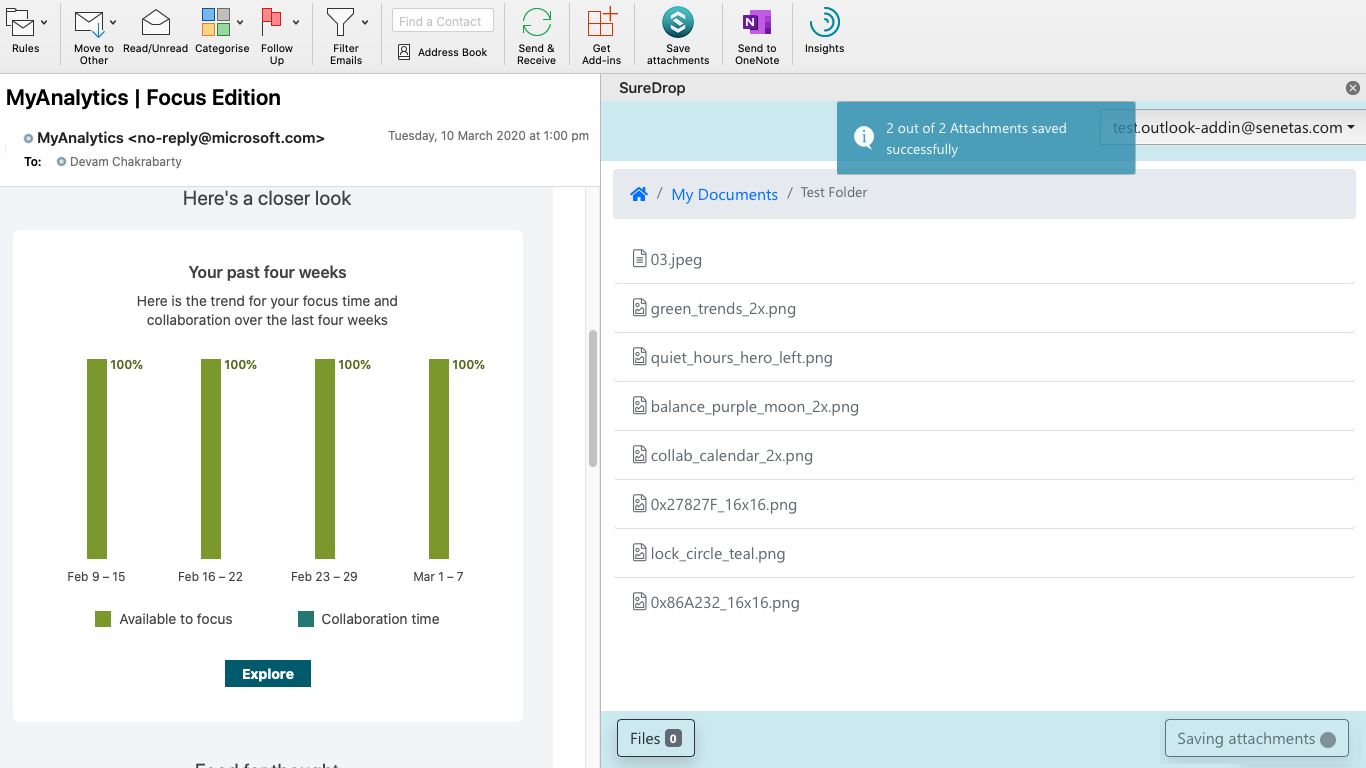
When you receive an email with attachments, click the SureDrop button in the Outlook ribbon or email header.
Select the attachments you’d like to save to your SureDrop account.
Choose a location in your SureDrop to save the attachments, the default is
My Documents.You can also create a new folder in SureDrop for saving your attachment by clicking on your user name and choosing the Create folder option from the dropdown.
Feedback
Please try it and let us know if it enhances your SureDrop usability. You can directly send us your feedback by clicking on your user name and choosing the Feedback option from the dropdown.